I’ve already covered how to do this with vlc a while back in parts 1 followed by part 2. I just found out that something very similar in results can be done with ffmpeg. ffmpeg has recently added support for directshow filters which now allows one to capture the screen and stream and/or save it. Here is how you can do this:
1.) Grab a copy of the Screen Capture DirectShow source filter from Unreal Streaming Technologies. It’s about half way down that page. They have both the UScreenCapture X86 Edition and the X64 Edition (depending on your OS installation). I used the 64 bit filter on a Windows 7 64 bit installation.
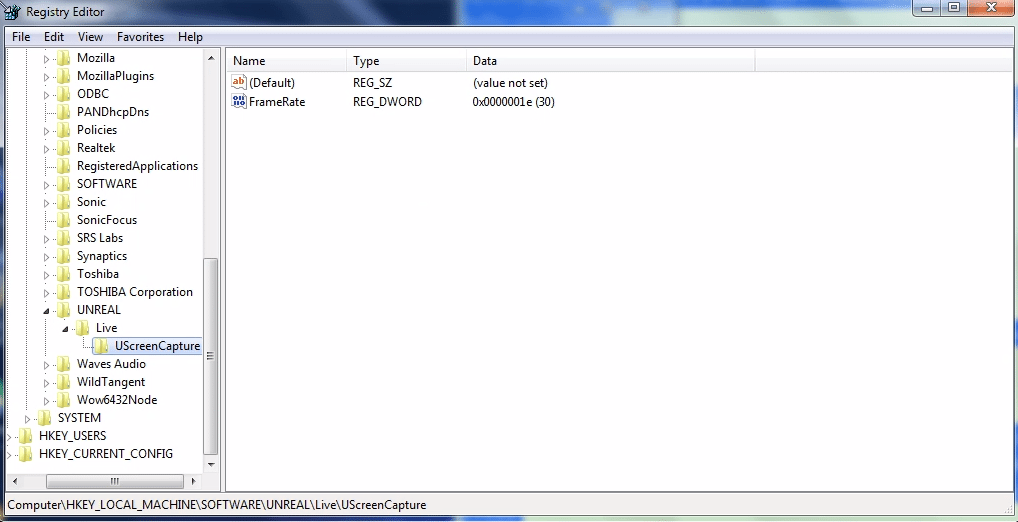
2.) Install the filter and make sure you make the following changes to your windows registry using regedit. The default frame rate for UScreenCapture filter is 10 f/s and we need to boost this to 30 frames/sec. You need to find the key HKLM\SOFTWARE\UNREAL\Live\UScreenCapture and insert a DWORD value of 30 for FrameRate (You have to create FrameRate, it does not exist by default). Once you’ve done the registry tweak, reboot.
3.) Install the latest greatest version of ffmpeg for your windows version from Zeranoe. I grabbed the 64 bit Static build since I didn’t want to deal with libraries and such. Extract it and stick it somewhere on your hard drive. Remember the path to this folder since we will need it later.
4.) Open a command line window and cd to the directory where you extracted ffmpeg into, find the bin directory and cd into it. This is were the ffmpeg executable resides. In my case (I extracted the ffmpeg files into “Program Files” directory) it is C:\Program Files\ffmpeg-git-059707e-win64-static\bin.
5.) If you’ve made it this far, hand in there, we’re almost home. Now you need to issue the command that gets the screen streaming going. But first we need to find out the name of the Screen filter device. So issue the following command:
ffmpeg -list_devices true -f dshow -i dummyIn the output look for a device called “UScreenCapture“. Hopefully if everything is working with the directshow filter you have a entry in the list. That’s the name of our device that we need to pass onto ffmpeg. While you’re there also look for your audio device entry as well. Mine was the truncated word “Stereo Mix (Realtek High Defini” (Yes mine was missing the end of that line). Jot that down somewhere as well. I will show you how to get audio going as well.
6.) So first step is to get video going. Assuming you have a “UScreenCapture” device (You could use another directshow filter if you like, this will work with most of them. I just used the Unreal filter for the heck of it), here is the command to start encoding and sending video:
ffmpeg -f dshow -i video="UScreenCapture" -r 30 -vcodec mpeg4 -q 12 -f mpegts udp://aaa.bbb.ccc.ddd:6666?pkt_size=188?buffer_size=65535- -f dshow specifies that you’re going to be using a directshow device as your input.
- -i video=”UScreenCapture” is the name of the input directshow device which we picked up in step 5.
- -r 30 is the frame rate.
- -vcodec mpeg4 is our video codec of choice.
- -q 12 is a quality measure for the encoding process (1 is the best and 30 the worst). We’re doing VBR encoding so this measures the compression ratio vs. picture quality.
- -f mpegts is our output filetype. In this case mpeg-2 transport stream. Yes, we’re encapsulating mpeg4 video inside a mpeg-2 transport stream…..why?….google it.
- udp://aaa.bbb.ccc.ddd:6666?pkt_size=188?buffer_size=65535 this last bit specifies the address and port number of the recipient machine (aaa.bbb.ccc.ddd is the ip address of that machine and 6666 is my arbitrary port number). We’re also instructing ffmpeg to create smaller 188 byte size udp packets (which is the size of the transport stream packets) to decrease latency and our buffer size is 64kb.
7.) On the receiving machine you should be able to use vlc, ffmpeg or mplayer to catch the stream. In vlc simply open the Network stream rtp://@:6666 , in ffmpeg you can use the command ffplay -i udp://:6666 or using mplayer you can issue the command mplayer -framedrop -double udp://:6666 .
8.) Now to optionally add sound to the whole thing we can use this command on the encoding machine (instead of step 6). You need to know the device name for your sound card and you probably want to turn the volume down (at least initially) on the decoding machine.
ffmpeg -f dshow -i video="UScreenCapture" -f dshow -i audio="Stereo Mix (Realtek High Defini" -r 30 -vcodec mpeg4 -q 20 -acodec libmp3lame -ab 128k -f mpegts udp://141.117.224.74:6666?pkt_size=188?buffer_size=65535- -f dshow specifies that you’re going to be using a directshow device as your input (VIDEO).
- -i video=”UScreenCapture” is the name of the input directshow video device which we picked up in step 5.
- -f dshow specifies that you’re going to be using a directshow device as your input (AUDIO).
- -i audio=”Stereo Mix (Realtek High Defini” is the name of the input directshow audio device which we picked up in step 5.
- -r 30 is the frame rate.
- -vcodec mpeg4 is our video codec of choice.
- -q 20 is a quality measure for the encoding process (1 is the best and 30 the worst). We’re doing VBR encoding so this measures the compression ratio vs. picture quality. I went with 20 instead of 12 from step 6 since the audio encoding slows the machine down a bit.
- -acodec libmp3lame is our video codec of choice
- -f mpegts is our output filetype. In this case mpeg-2 transport stream. Yes, we’re encapsulating mpeg4 video inside a mpeg-2 transport stream…..why?….google it.
- udp://aaa.bbb.ccc.ddd:6666?pkt_size=188?buffer_size=65535 this last bit specifies the address and port number of the recipient machine (aaa.bbb.ccc.ddd is the ip address of that machine and 6666 is my arbitrary port number). We’re also instructing ffmpeg to create smaller 188 byte size udp packets (which is the size of the transport stream packets) to decrease latency and our buffer size is 64kb.
23 responses to “Stream your Windows desktop using ffmpeg”
hi,
this is a VERY great article, I managed to record my desktop already. But when I try it with a game (Its 256 colored game, full screen) it only records black screen and doesnt seems to notice the resolution change… do you have any idea?
Hi deeped,
If I had to take a wild guess the fact that the game is using a overlay would cause this issue. I would try this with a DirectX game first and see if that works. Not sure if this game is new or old, but from the sounds of it, it’s possible that it’s using overlay graphics (instead of directx). Sorry I don’t have much experience with capturing game play.
Hope this helps…..
Is there any way to catch the stream on an unjailbreaked PS3? Can we somehow feed it to some other media server, mezmmno, ORB, WMP, PS3 Media Server, in a way we can catch it from there? (Maybe this is a dumb question and the answer is implicit for everyone else…)
this is excellent. but how to stream from behind a router to another computer also behind a router?
if my computer is 192.168.0.2 and IP is 111.222.333.4444 and my friend is 192.168.0.15 and IP is 555.666.777.888
Hi Dinh,
Normally this would work — broadcasting from a private network and receiving in another private network — if the appropriate ports have been opened on the firewall/router and forwarded to the right sender/receiver behind the NAT/router. The problem in this case would be that “usually” for home type installations your upstream bandwidth is not nearly enough to send out a decent video stream to your buddies house. But assuming you do, you (as the sender) would need to send the stream to his external IP address (555.666.777.888, not the private 192 one) at a certain port (anything about 1024 should normally work) and he would have to configure his router to allow reception on that port and also configure “port forwarding/triggering” to his “private” ip address (192.168.0.15 in this case). You, the sender, really don’t have to do much configuration on your router (other that making sure that you’re streaming to HIS EXTERNAL IP address 555.666.777.888 in this case).
Good luck,
TTYL
Many
Hi,
Thanks for your tutorial. It has a lot of delay for real realtime streaming. How can i reduce much more this latency?
Thanks
I know it’s old, but can ffmpeg serve a stream accessible via an http request? I’m thinking of streaming this to a smartphone, but i have no idea how i would have the browser listen on a udp port for video data…
Hi,
If you’re talking about streaming via “hls” (ie: HTTP Live Streaming) then have a look at the following article:
https://www.nerdlogger.com/2010/03/05/how-to-stream-live-hdvdv-to-iphone/
You can replace the vlc parts with ffmpeg (or read one of the article links at the bottom of that post).
Good luck,
TTYL
Many
Hi Edu,
Not sure about ffmpeg (there are just too many switches in there for tweaking stuff). I’m sure there is a switch in there somewhere, but don’t know where, I would use vlc instead:
https://www.nerdlogger.com/2008/01/08/stream-your-linuxwindowsmac-desktop-as-video-using-vlc/
https://www.nerdlogger.com/2008/03/31/stream-your-linuxmacwindows-desktop-as-video-using-vlc-part-ii/
VLC has specific menu items that you can go into and change the encoder latency (don’t remember where they are right now). Once you save the settings, you can use the command line stuff from the two articles to stream.
Hope this helps…..
Good luck,
TTYL
Many
Re: latency there are a few hints/clues here: http://ffmpeg.org/trac/ffmpeg/wiki/StreamingGuide#Latency
[…] möglich sind. Dann kann der Inhalt nur gestreamt werden: zum Beispiel mit VLC oder ffmpeg. Stream your Desktop using ffmpeg Stream your Desktop as video using VLC – Teil 1 (Commandline) und Teil 2 […]
So great. You are the an hero.
[…] Stream your Windows desktop using ffmpeg […]
[…] Nerdlogger’s article on streaming the Windows desktop using ffmpeg […]
Hi,
I am looking for an example with joining the UScreenCapture and http mp3 stream from radio station. I just can’t get it working … :/
Thanks for your help in advance!
I want to extract images from a ogg file using ffmpeg.
At the moment I am extracting them straight to the hard drive using these arguments:
-i – -qscale 1 h:\\out\\img-%05d.jpg
But i would like to extract directly to a stream.
What would be the arguments to use please?
thanks
Hi there.
In my Windows 7 PC I can only see the Microphone audio input:
[dshow @ 0000000000310500] DirectShow video devices
[dshow @ 0000000000310500] “Trust Webcam”
[dshow @ 0000000000310500] “UScreenCapture”
[dshow @ 0000000000310500] DirectShow audio devices
[dshow @ 0000000000310500] “Microphone (Realtek High Defini”
Is there any way to let ffmpeg get the input from the Mixer as in this example?
Thank you,
Paolo
Hi Paolo,
Yeah it seems like your mixer device (if you have one) is not showing up. Either the driver doesn’t provide a directshow device or ffmpeg is having problem detecting it. Another approach — which I know little about — might be to install jack (it’s a audio routing library) and use the ffmpeg jack subsystem for audio capture……more info here:
http://ffmpeg.org/ffmpeg-devices.html#jack
http://jackaudio.org/
Hope this helps…..
[…] FFMpeg es un potentísimo sistema para grabar, capturar o transformar vídeos y formatos, con el que se puede realizar casi cualquier operación de vídeo. A continuación, una guía con FFMpeg: Stream your windows desktop using FFMpeg […]
Hello, I’ve found this post interesting and useful. Thanks a lot.
I also made a small script based on your setup :
– FFmpeg (I went to http://ffmpeg.zeranoe.com/builds/ to download ffmpeg-20141116-git-ce80f9f-win64-static based on my windows x64 OS)
– virtual-audio-capture-grabber (virtual-audio-capture-grabber-device-master.zip from https://github.com/rdp/virtual-audio-capture-grabber-device, click on the download ZIP link on the bottom right).
– UScreenCapture(x64).zip from http://www.umediaserver.net/components/index.html (x64 for my windows 64 OS)
My FFmpeg installation folder is : C:\Program Files\ffmpeg\bin (You might have to edit the script to match your installation folder)
Here is the script (best saved in a .bat file, ffmpegScreenNAudioCapture.bat for exemple) :
(<<do not include<>do not include>> stop)
Quick explanation :
echo off
for /f “tokens=2 delims==” %%I in (‘wmic os get localdatetime /format:list’) do set datetime=%%I
set datetime=%datetime:~0,8%-%datetime:~8,6%
>>time and date format used at the end for the file name.
rem “C:\Program Files\ffmpeg\bin\ffmpeg” -list_devices true -f dshow -i dummy
>> just to remember how I found the name of the audio video and audio capture devices used in this script. (copy and use in the command line to find yours and edit in the following)
SET FFMPEG=C:\Program Files\ffmpeg\bin\ffmpeg
set A=raw.avi
“%FFMPEG%” -f dshow -framerate 25 -i video=”UScreenCapture” -f dshow -i audio=”virtual-audio-capturer” -r 25 -vcodec libx264 -crf 0 -preset ultrafast -acodec pcm_alaw -ab 128k %a% && “%FFMPEG%” -y -i %a% -c:v libx264 -preset medium -b:v 555k -pass 1 -acodec libvo_aacenc -b:a 128k -f mp4 NULL && “%FFMPEG%” -i %A% -c:v libx264 -preset medium -b:v 555k -pass 2 -acodec libvo_aacenc -b:a 128k output%datetime%.mp4 && del raw.avi && del NULL && del *.log && del *.mbtree
>> a few variables
FFMPEG to set the installation path of ffmeg.exe
A to set the name of the temporary video+audio file
video=”UScreenCapture” where “UScreenCapture” is the video capture device
audio=”virtual-audio-capturer” where “virtual-audio-capturer” is the audio capture device
And everithing that follow is the commandline and parameter used by ffmpeg to capture and compress in two pass the video (and audio) to get x264/acc mp4 file. There’s room for improvment. Enjoy
[…] Stream your Windows desktop using ffmpeg, same thing -other choices (no sound) […]
[…] Stream your windows desktop using FFMpeg […]
Hi
I am trying to capture screen and stream it to Wowza through RTSP.
Somehow I am able to send record in vodeo format but failed to stream it.
I tried using same command but to failed to stream in to other system.